
Here is what a secure floor looks like to a resident, from before they have access to after it ends, and what your security team sees. Phone pictures are shown on Android and iPhone, side by side.
The pictures use a penthouse floor (PH) and an up hall call (UP) on our test bench, for a made-up resident, Alex Martin. For everything secure doors and elevators can do, see Security.
Before access
A secure floor shows 🔐 beside its name until this phone has access.
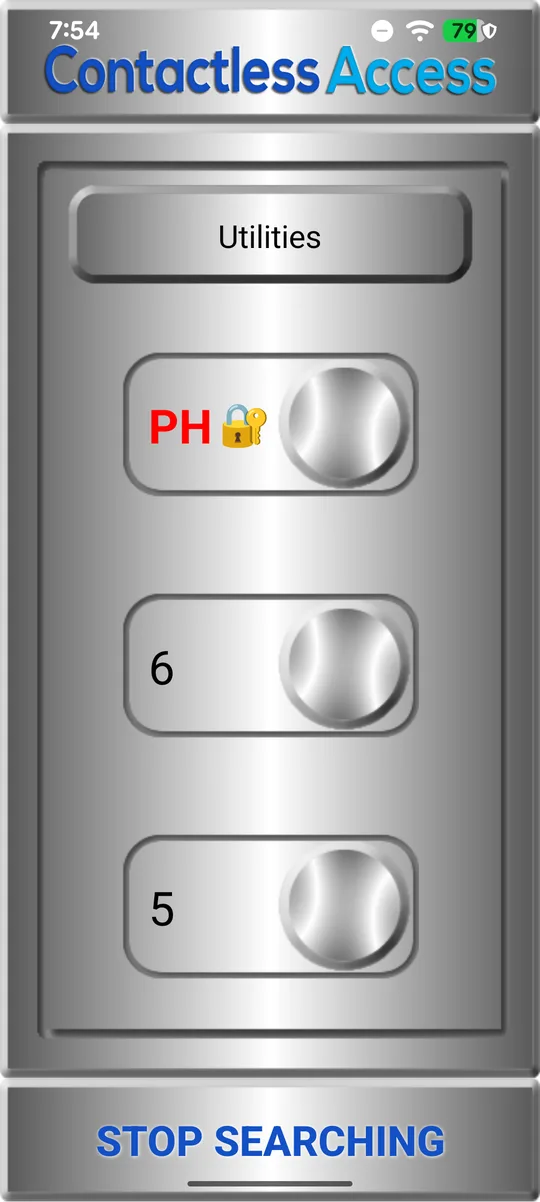
Android
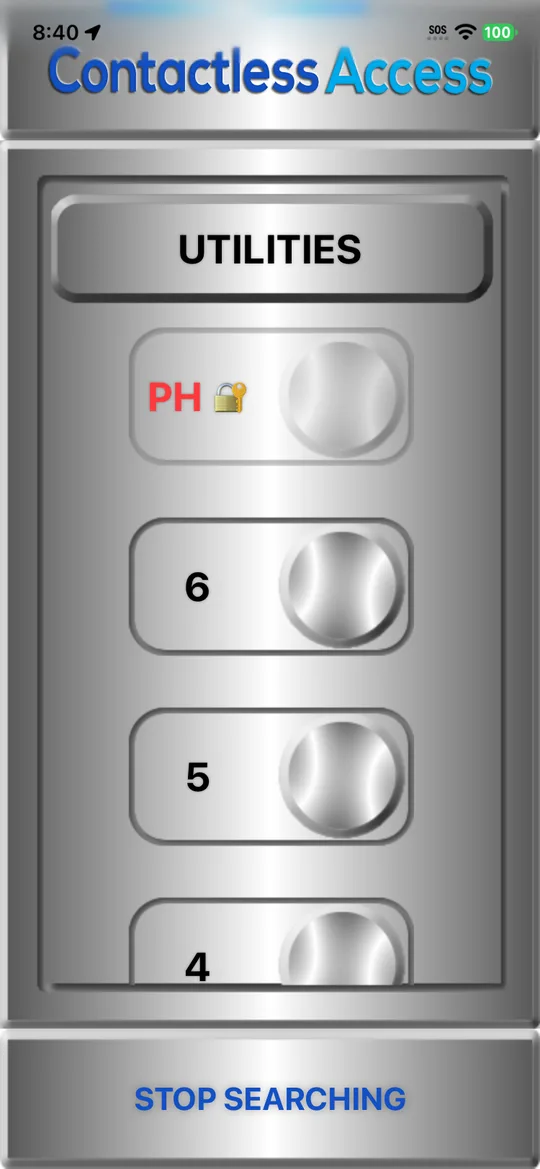
iPhone
A tap on a locked floor or hall call doesn’t press it. The app says the button is secure.
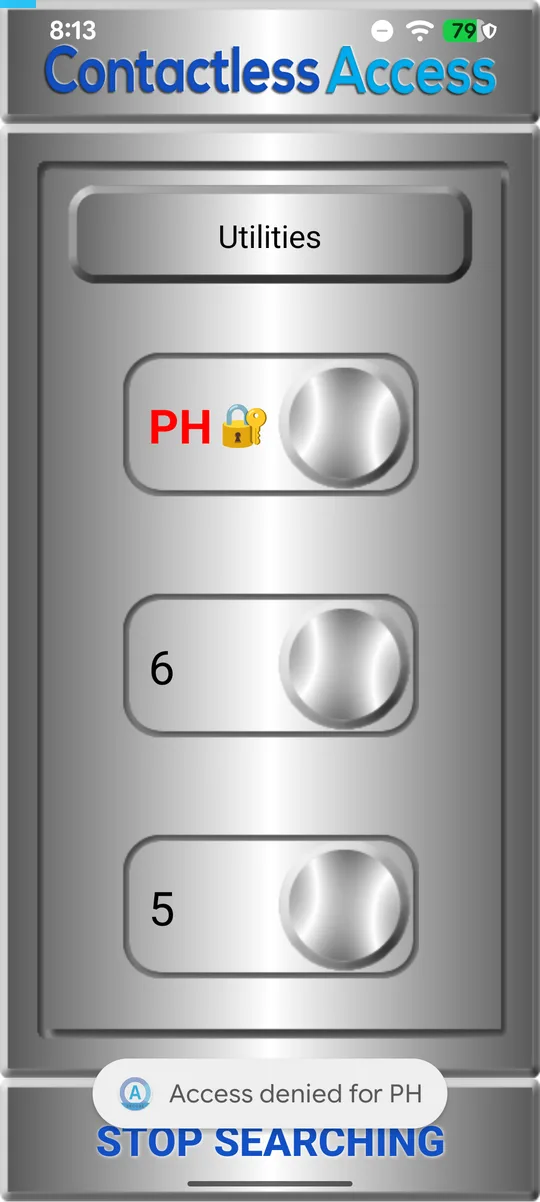
Android
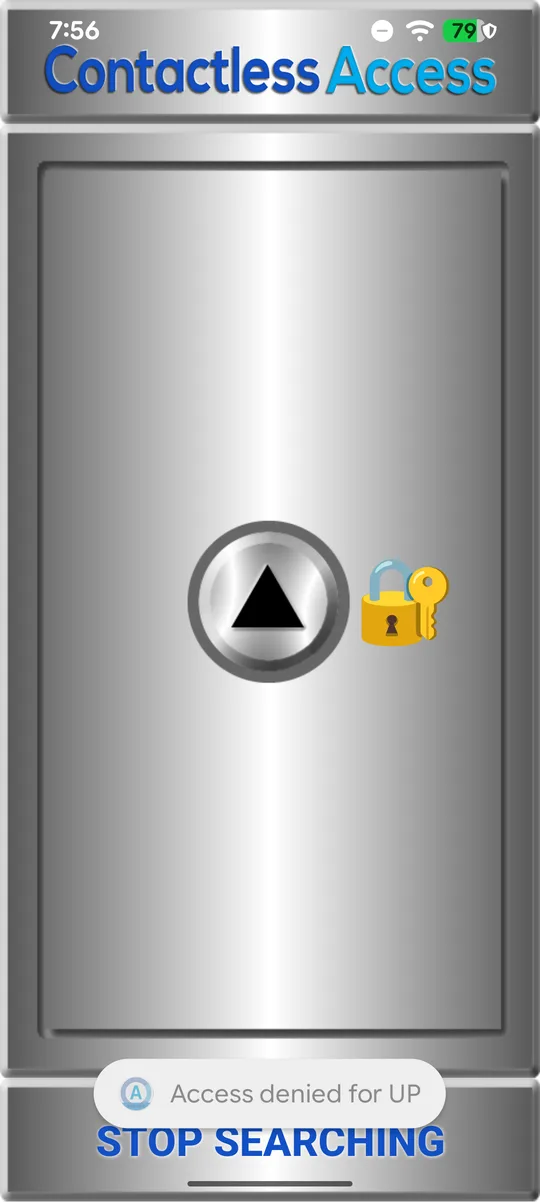
Android
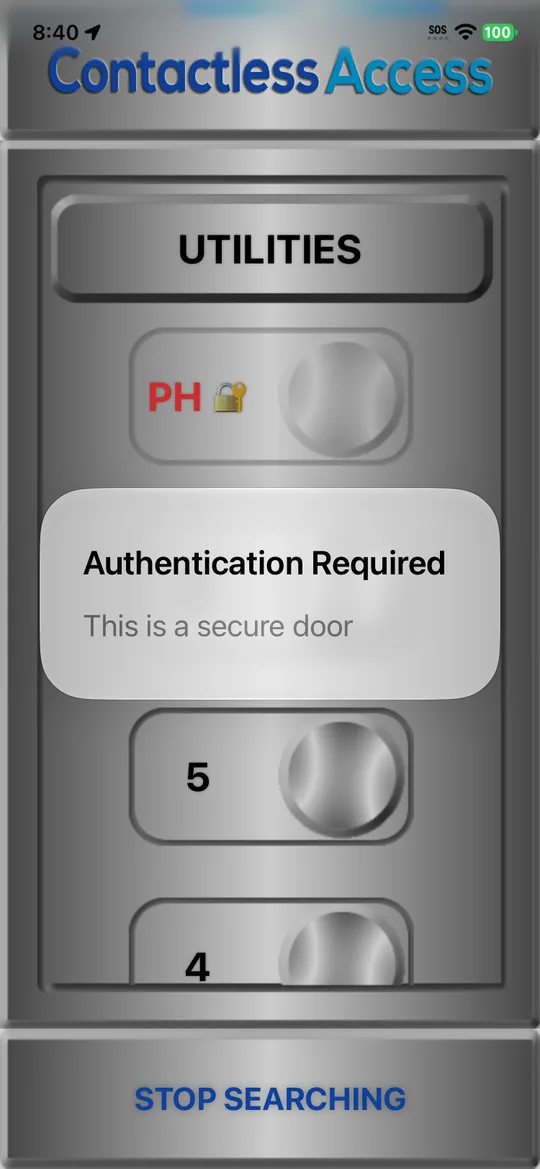
iPhone
Hall calls can be secure too: here UP, so only approved people can call the elevator up from this floor.
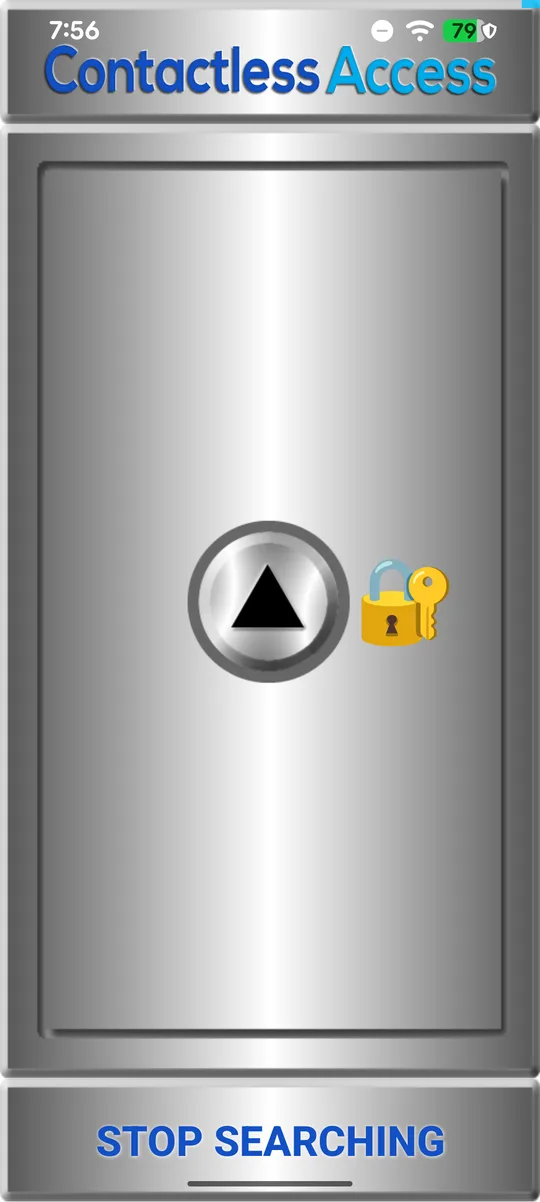
Android
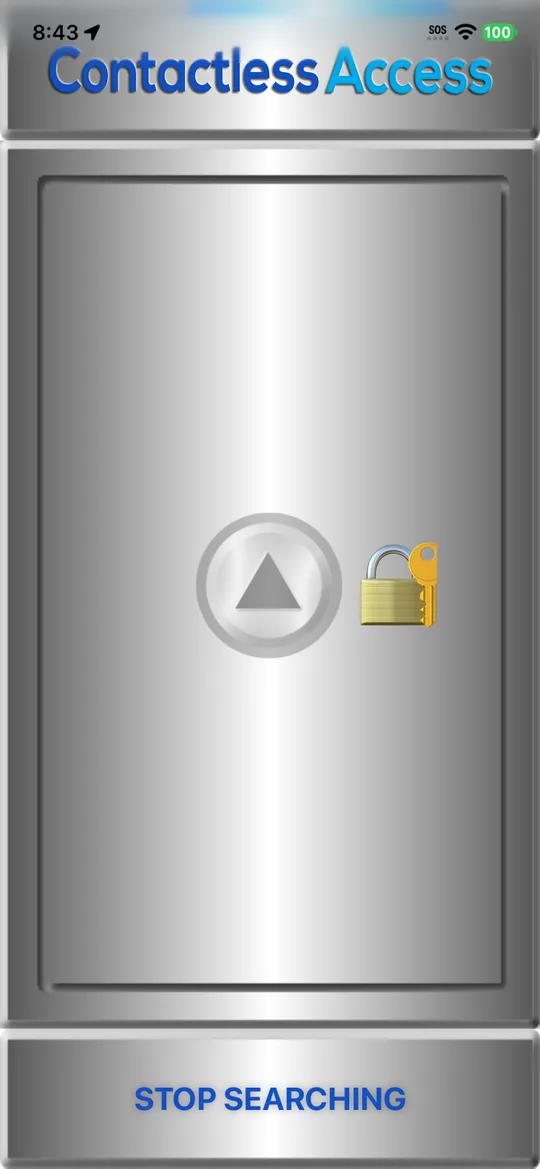
iPhone
Access arrives
Security chooses the floors, the last day, the days and hours, and how secure each access is. High asks for an SMS code, and a fingerprint or Face ID before every press.
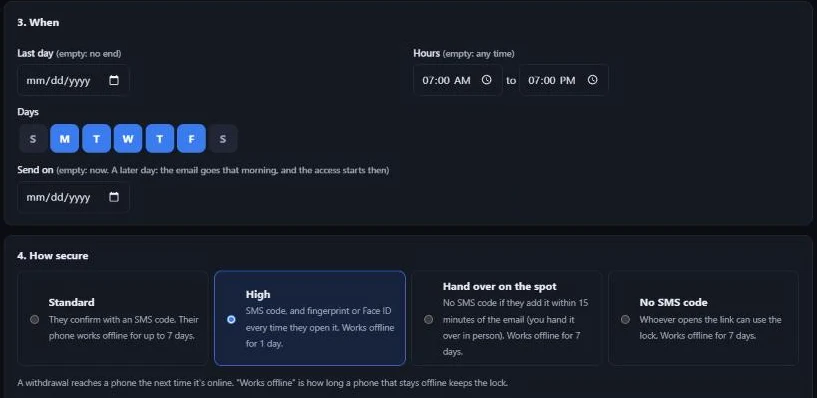
The resident gets an email with a link. Each link works once, on one phone.
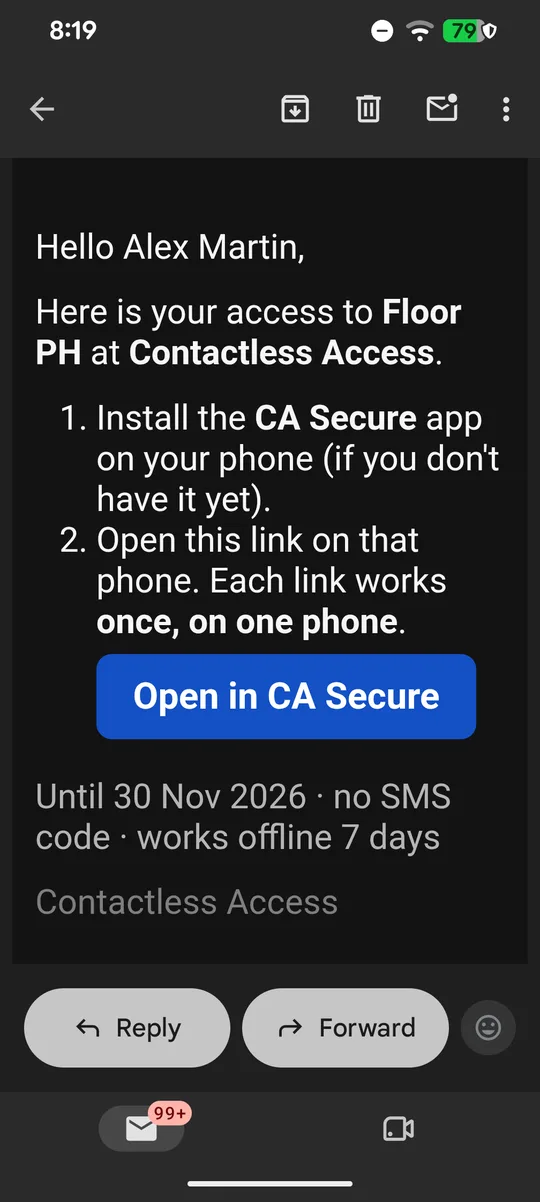
Android
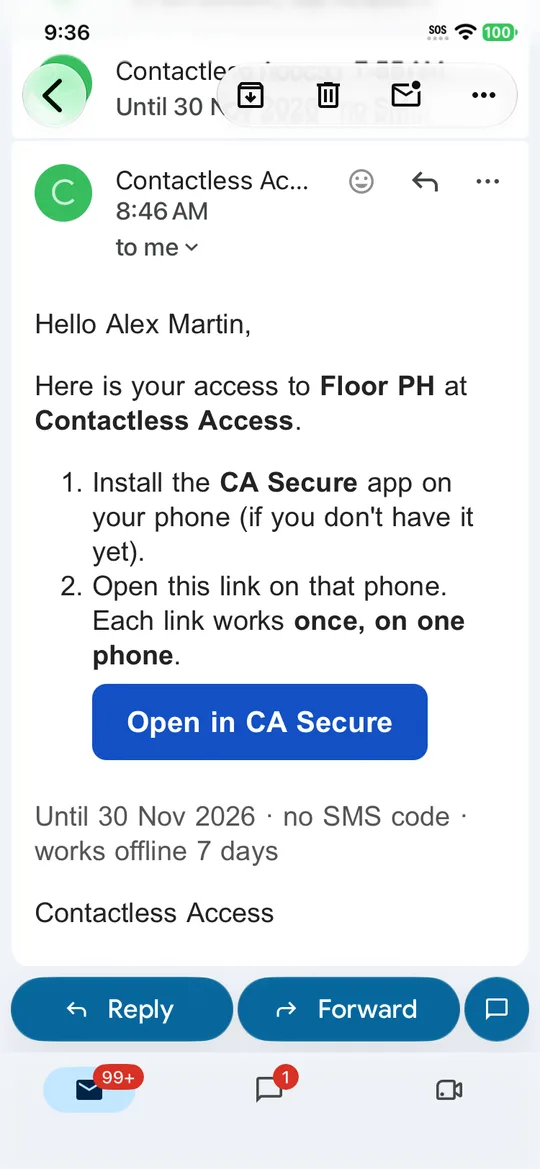
iPhone
The access appears on the Secure tab with its last day and days of the week.
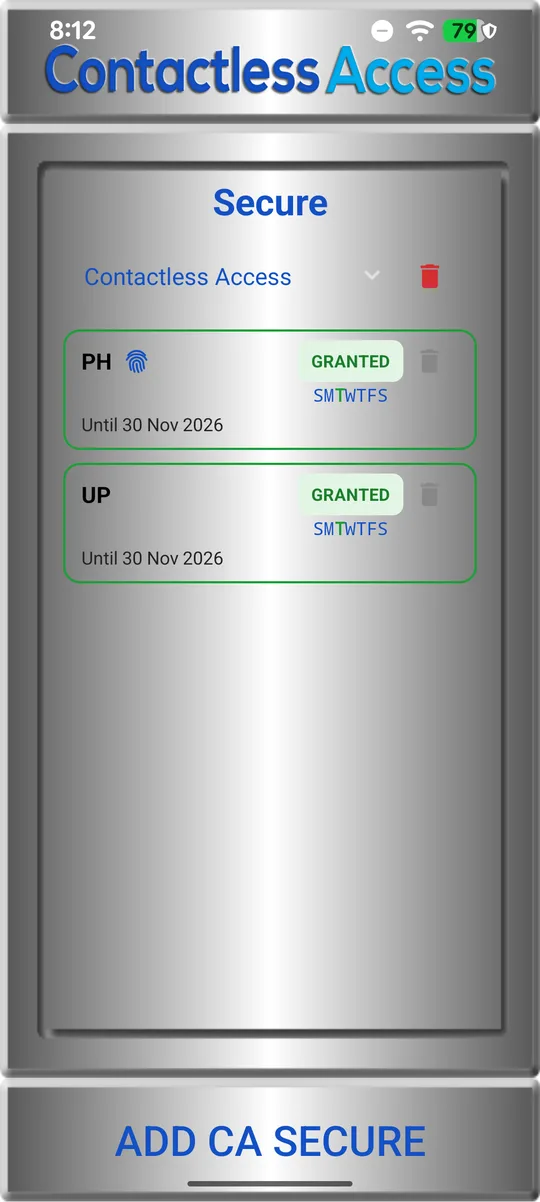
Android
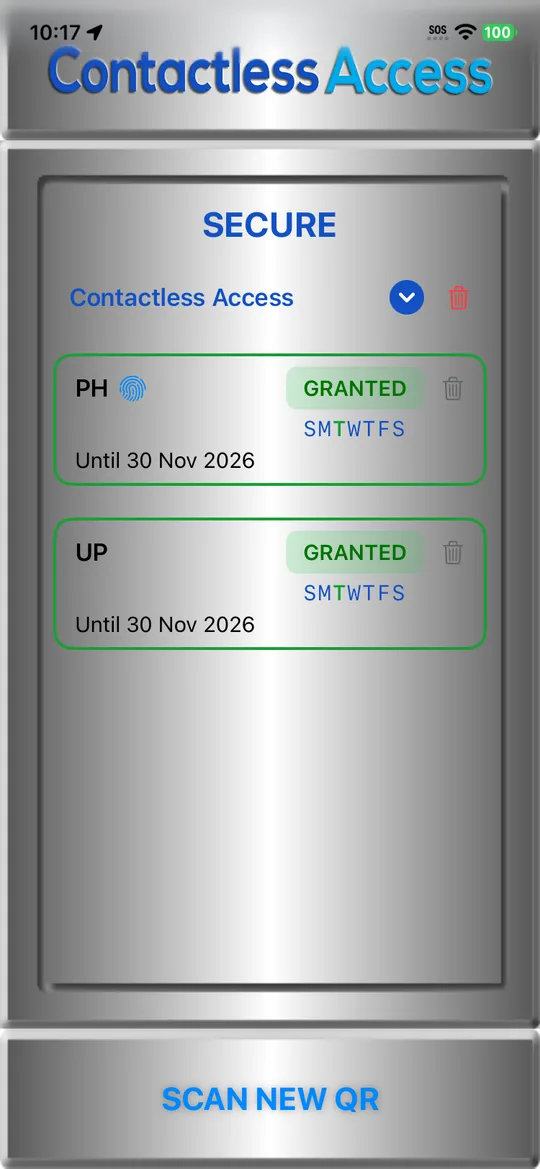
iPhone
Using it
With access, 🔐 becomes 🔑 and the floor works like any other.
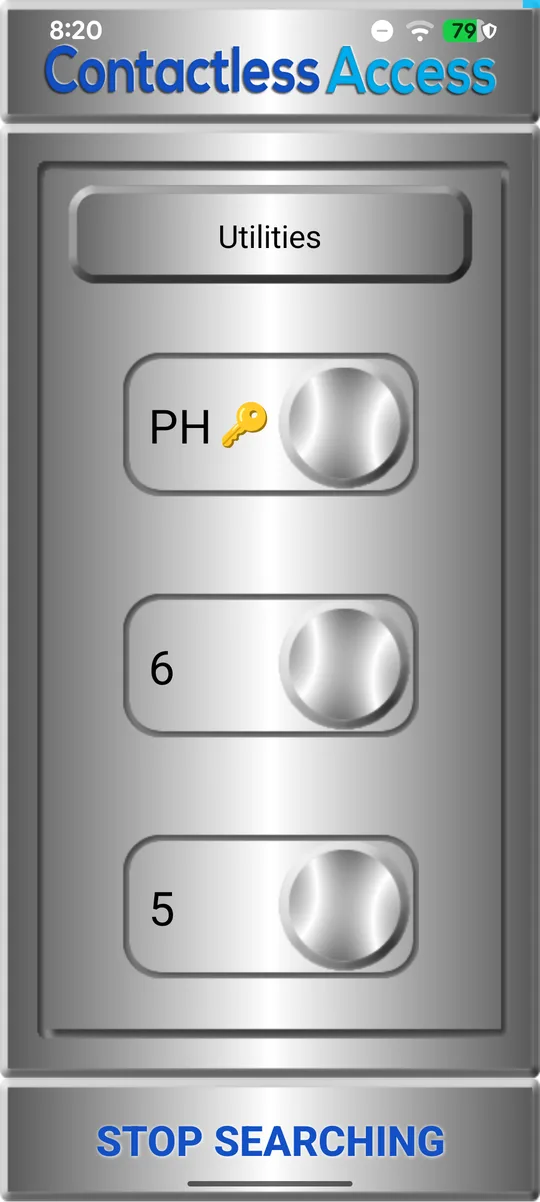
Android
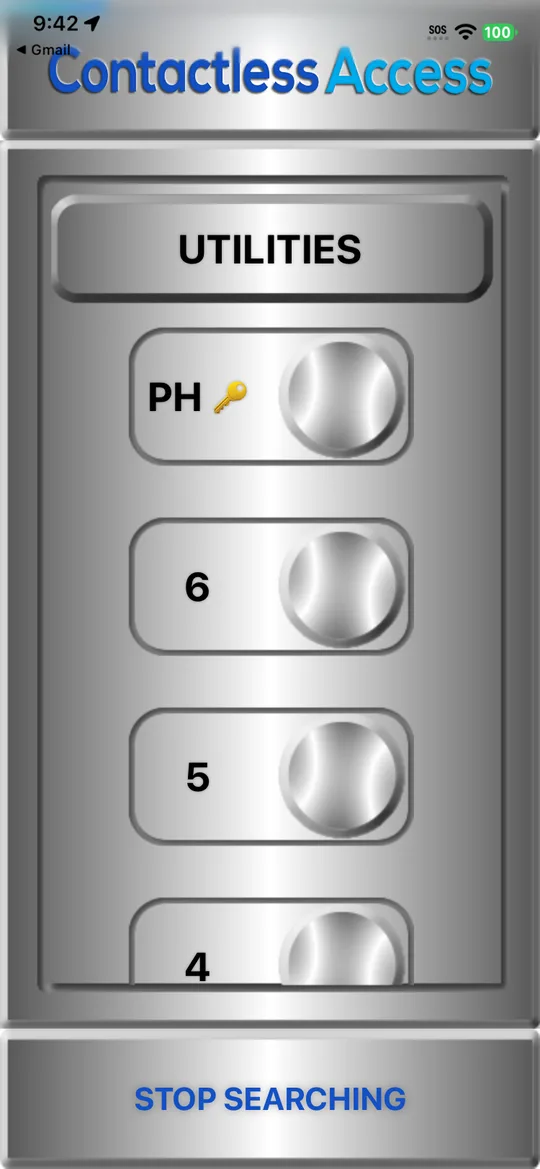
iPhone
Where security chose High, the phone asks for a fingerprint or Face ID before the press.
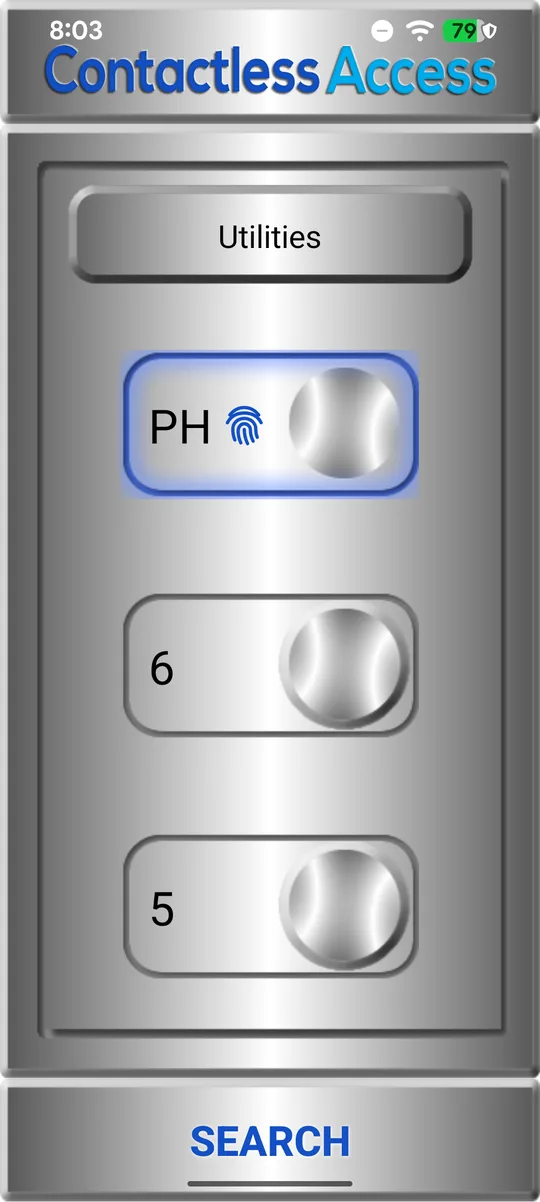
Android
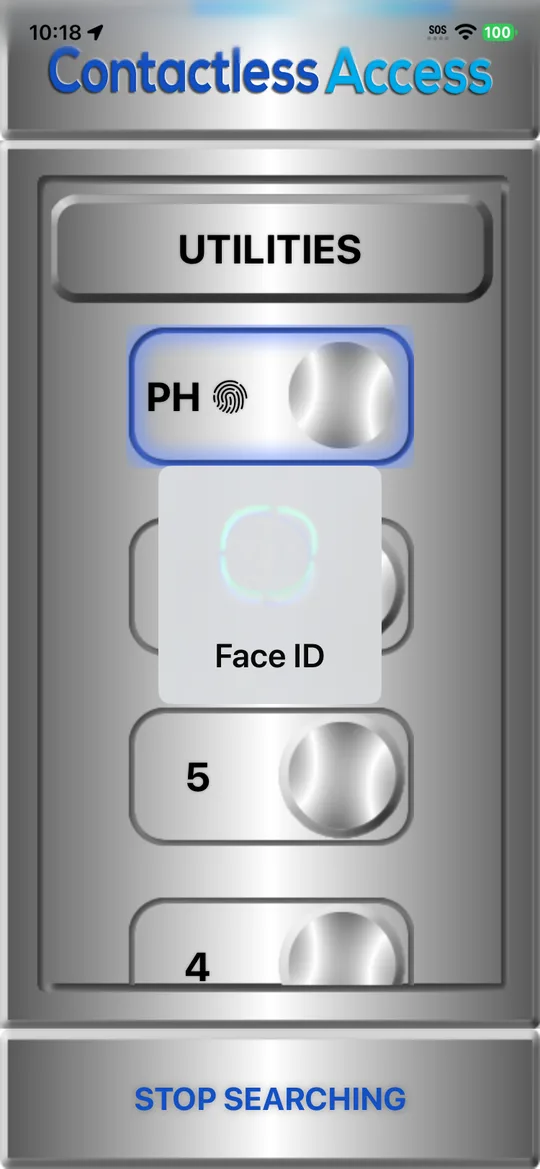
iPhone
When an SMS code is needed, the card stays amber until the resident confirms with the code sent to their phone.
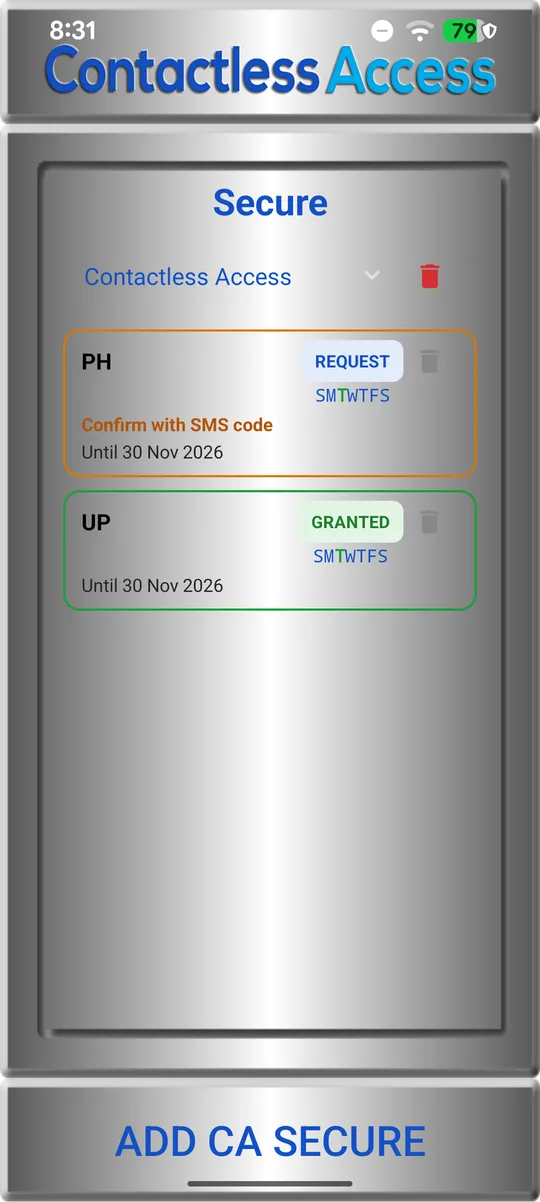
Android
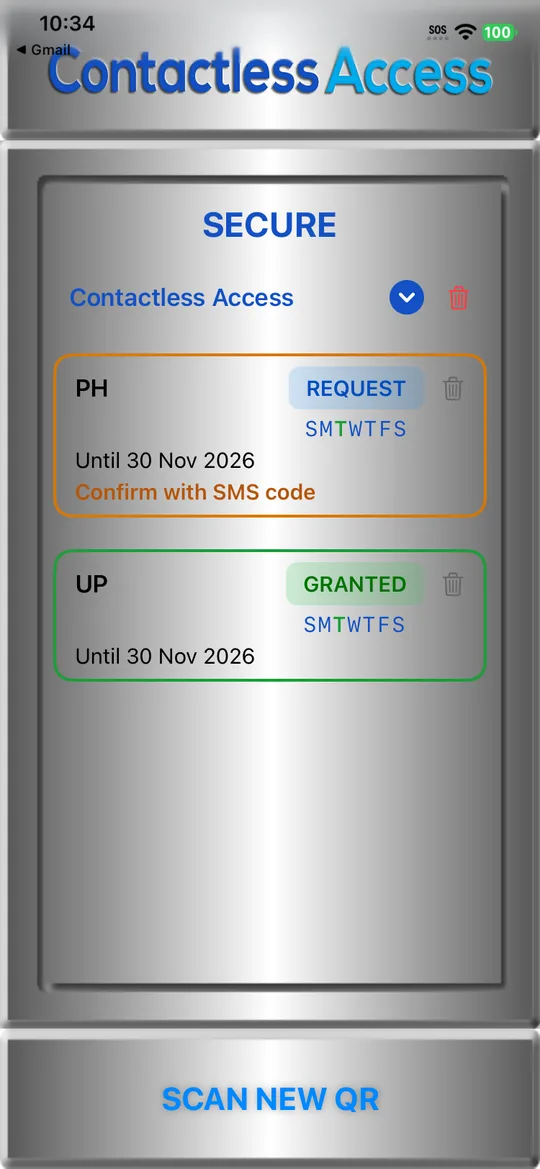
iPhone
PATHs: one PATH can call the elevator up and press PH, using secure hall calls and floors along the way.
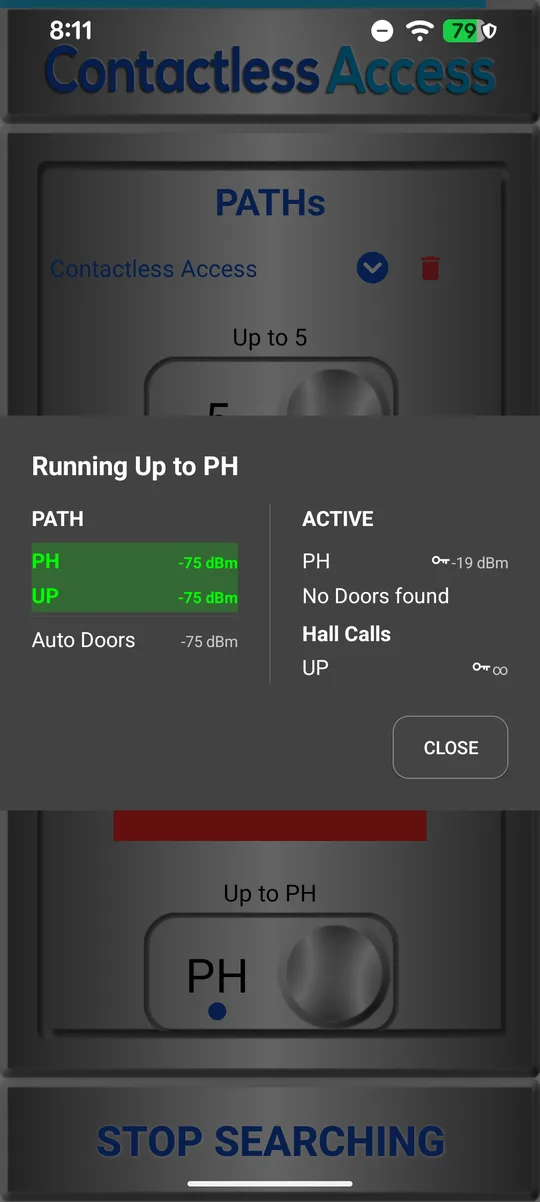
Android
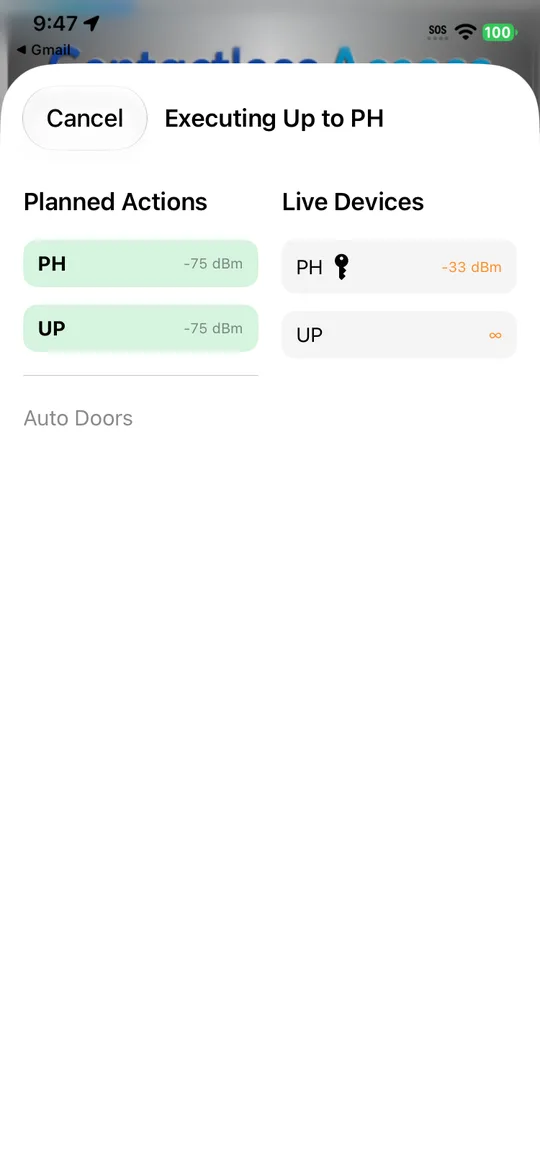
iPhone
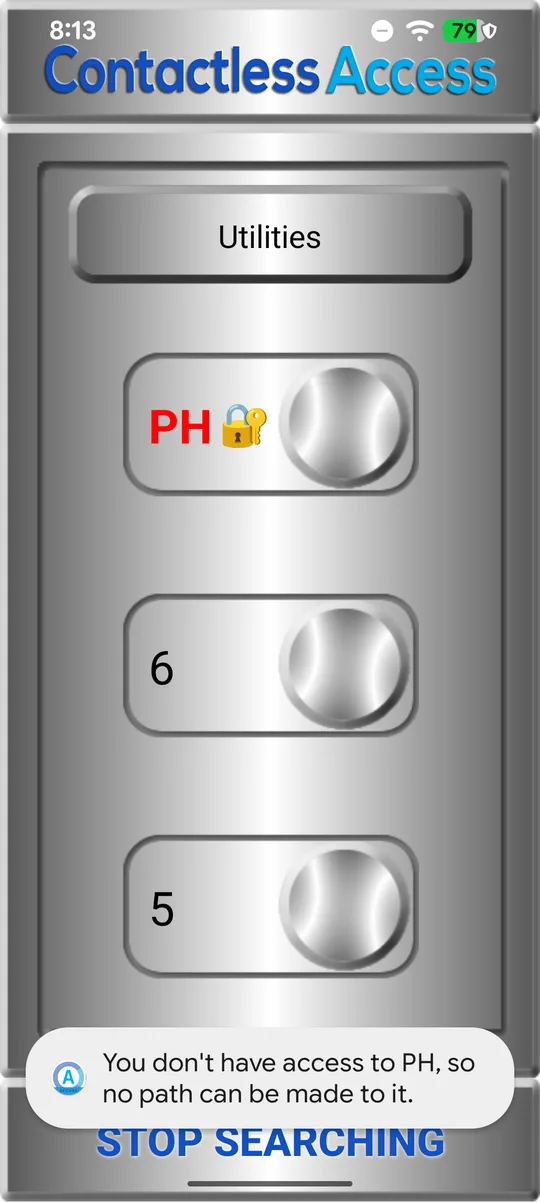
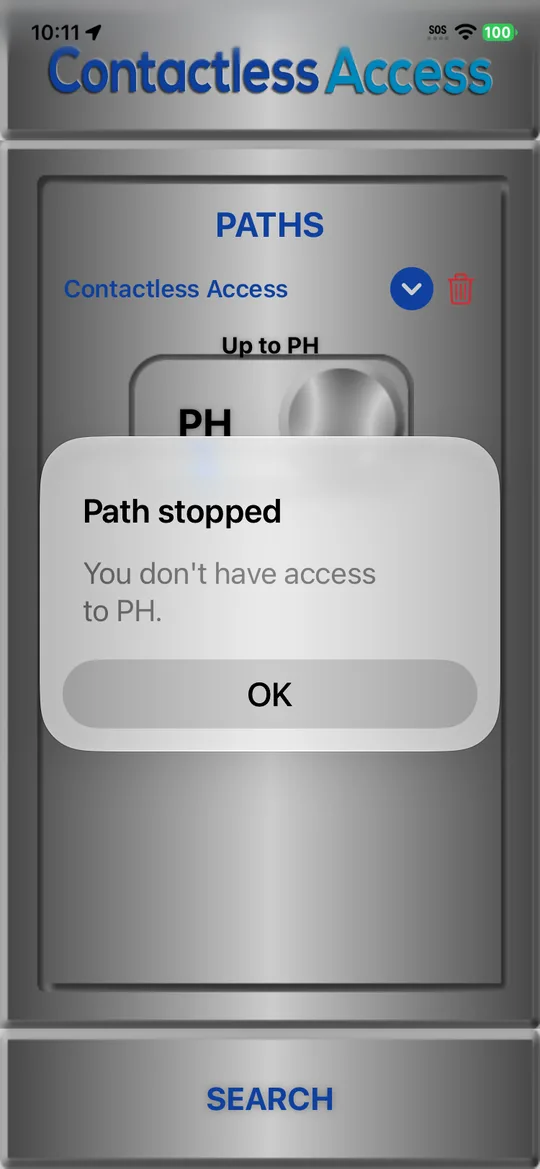
PATHs follow access too: the app won’t make a PATH to a floor the phone can’t use, and a PATH stops at a floor it no longer has access to.
Android
iPhone
When access changes
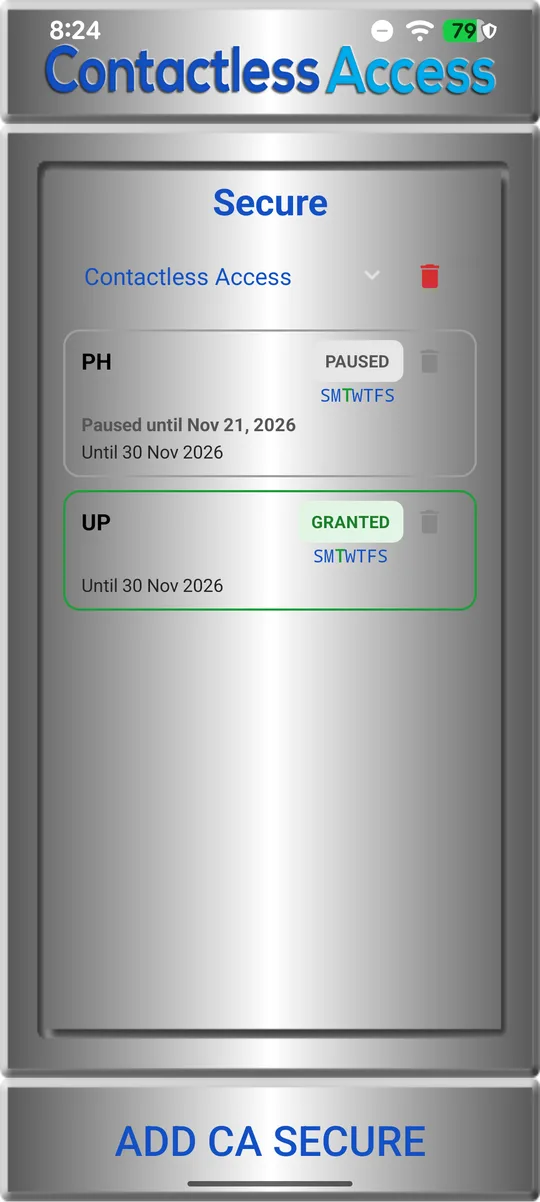
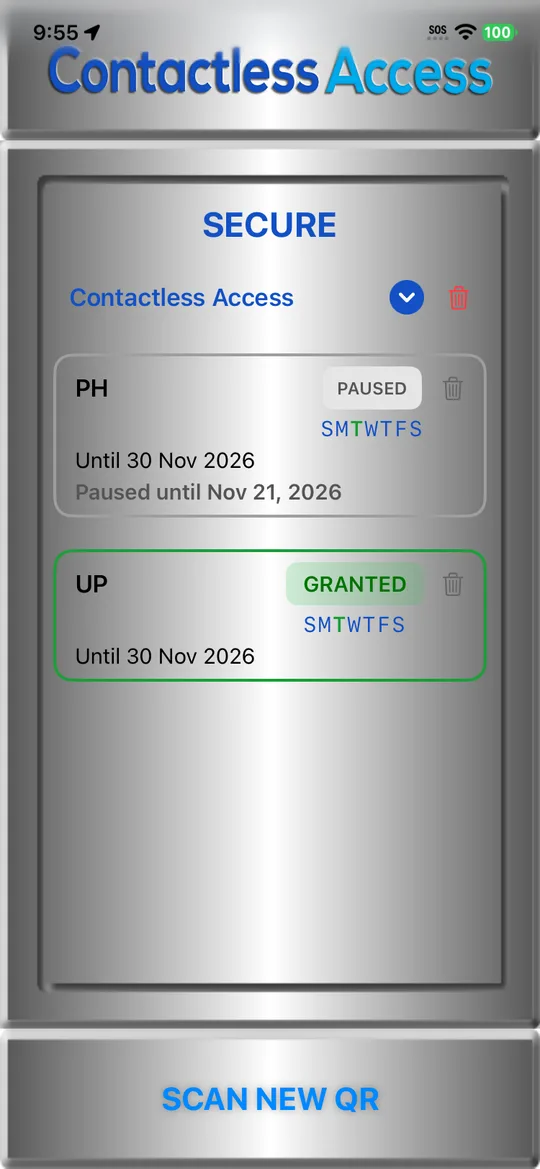
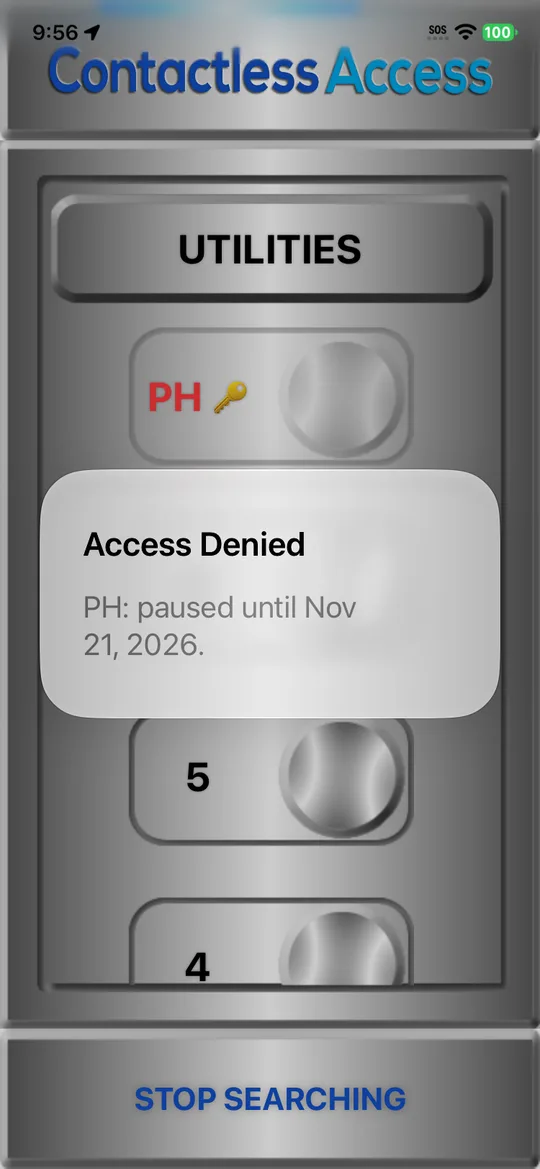
Paused: security can pause an access until a date. The card shows the date, and a tap on PH says it is paused.
Android
iPhone
iPhone
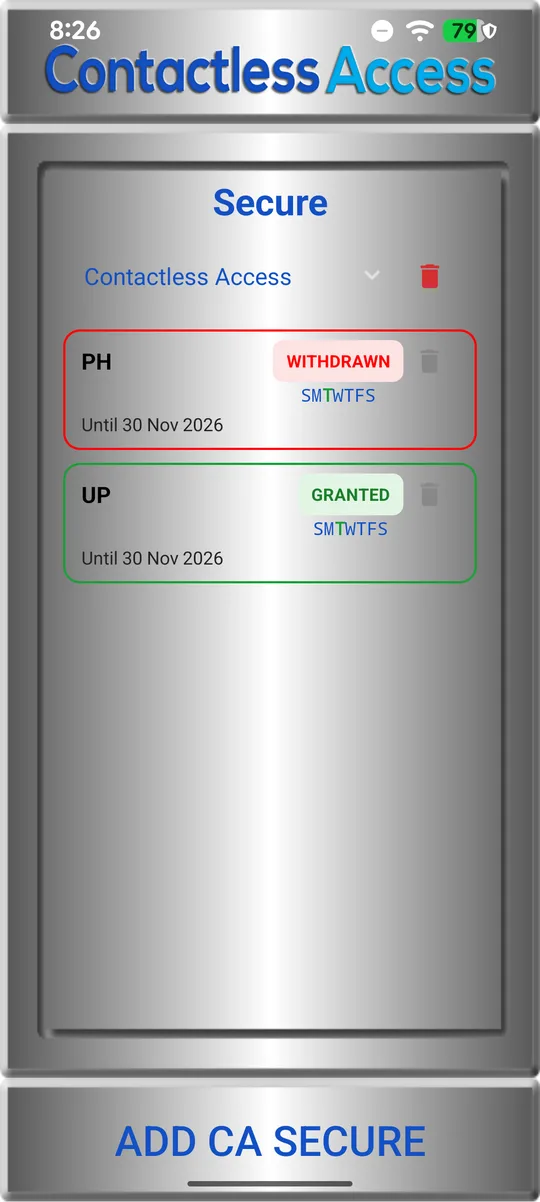
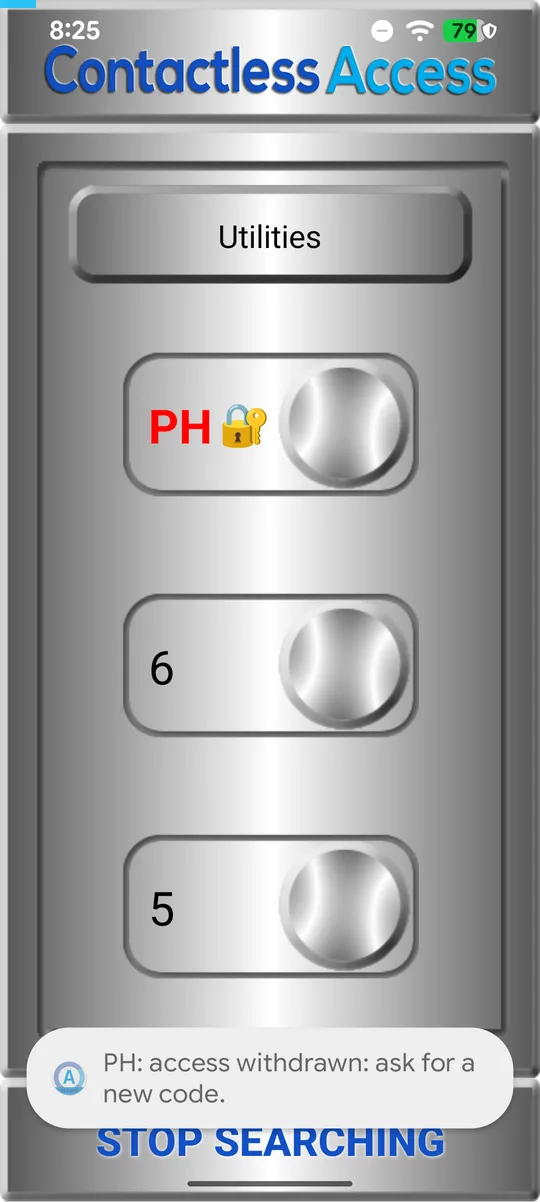
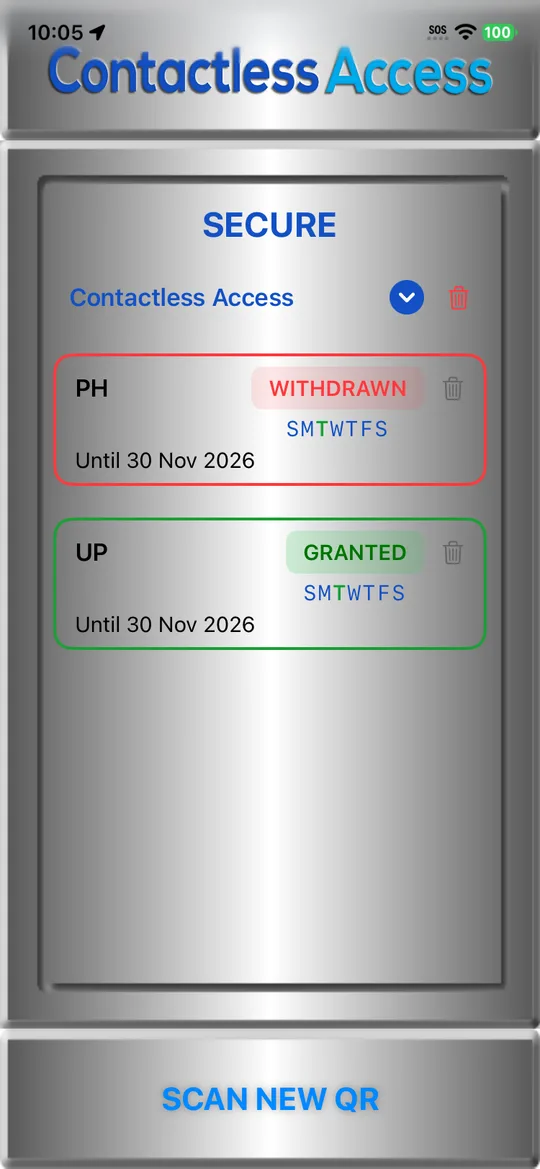
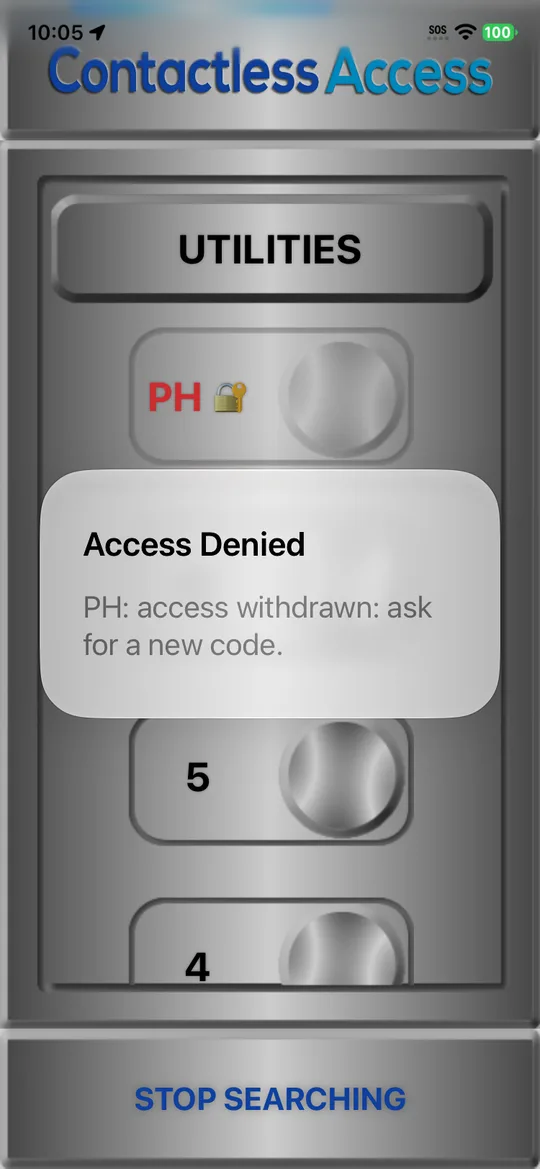
Withdrawn: the card says WITHDRAWN, PH shows 🔐 again, and a tap says to ask for a new code. A withdrawal reaches the phone the next time it is online.
Android
Android
iPhone
iPhone
What security sees
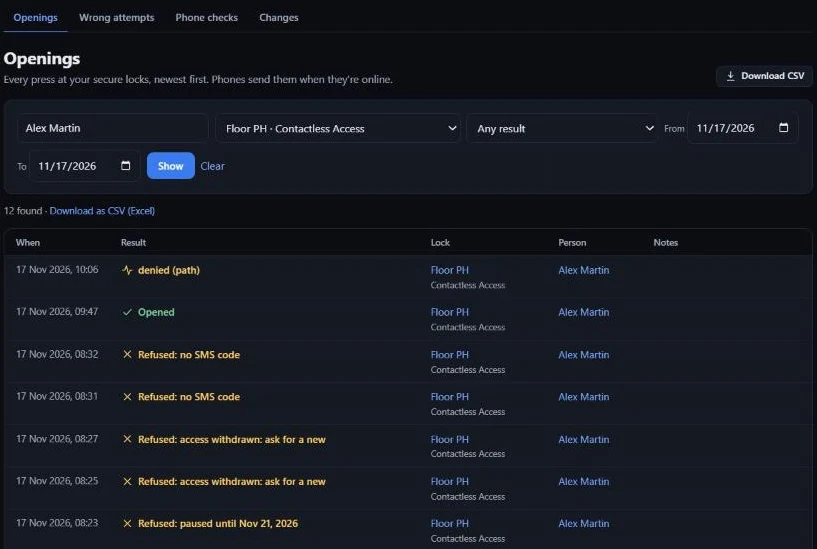
Every press is in Activity: who, which floor, when, and the result: opened, refused and why, or stopped on a PATH. You can download it as a spreadsheet (CSV).
Screen readers
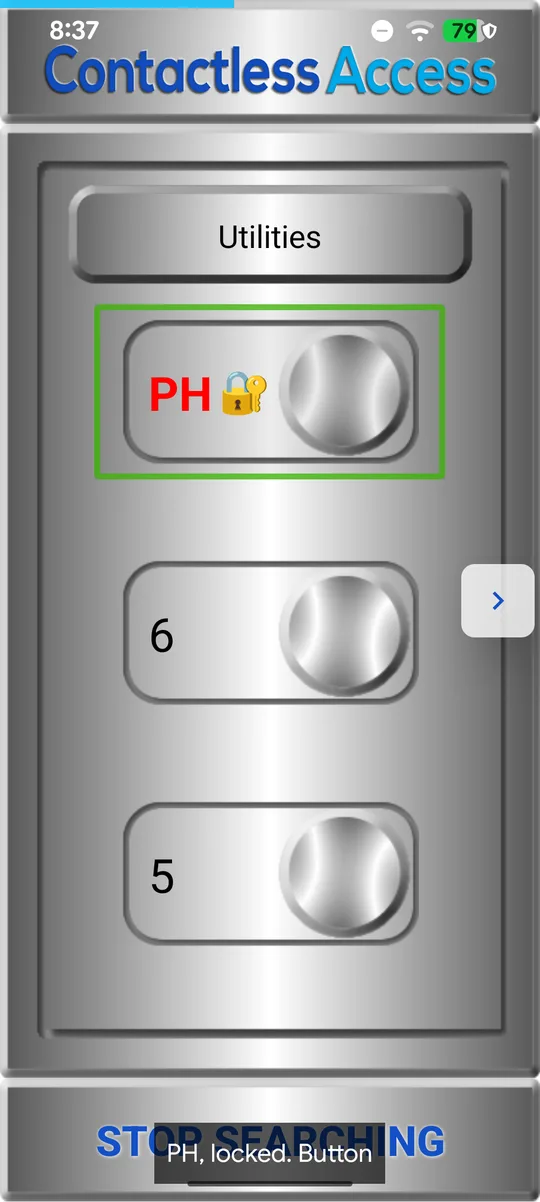
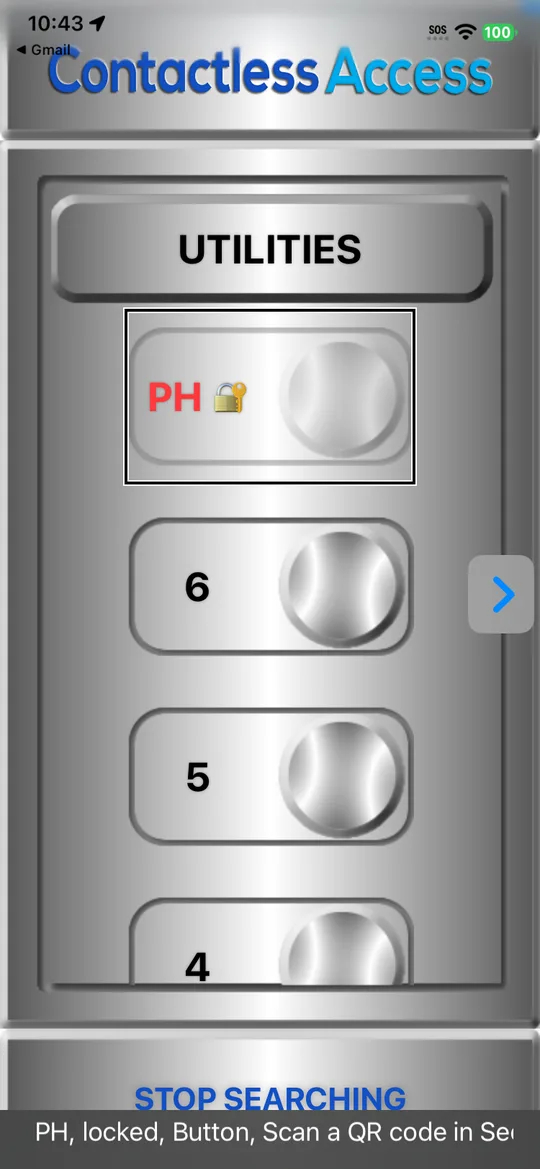
TalkBack and VoiceOver read a secure floor’s state aloud, for example “PH, locked”.
Android
iPhone
Talk to us about secure elevators
Tell us about the floors and hall calls you want to secure, and who needs access.