
Secure doors, with access you control. CA Secure opens a secure door only for the people you approve. They need no account or password, and you give or withdraw access from the CA Secure web admin.
Who’s in charge
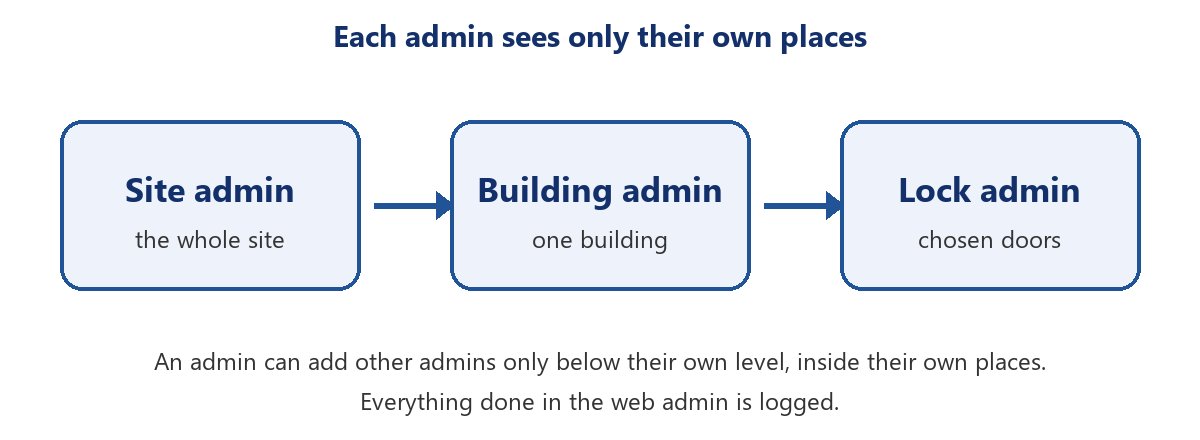
- Security accounts can look after a whole site, one building, or individual locks. Each account sees and manages only the doors in its own places.
- An admin can add other admins only below their own level, inside their own places.
- The web admin signs in with a 6-digit code sent by email. There are no passwords to steal or share, and sign-in tries are limited.
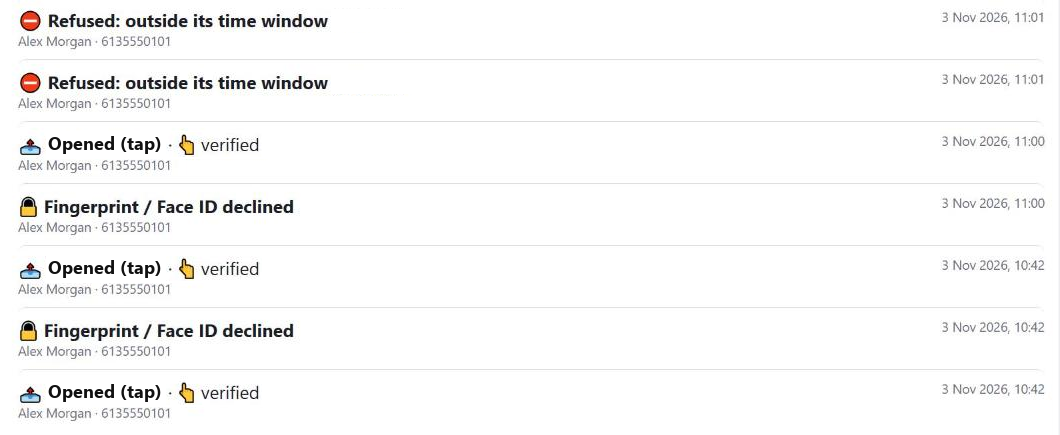
- Everything done in the web admin is logged: who gave, withdrew or reset what, and when.
What a CA Secure lock can do
Giving access
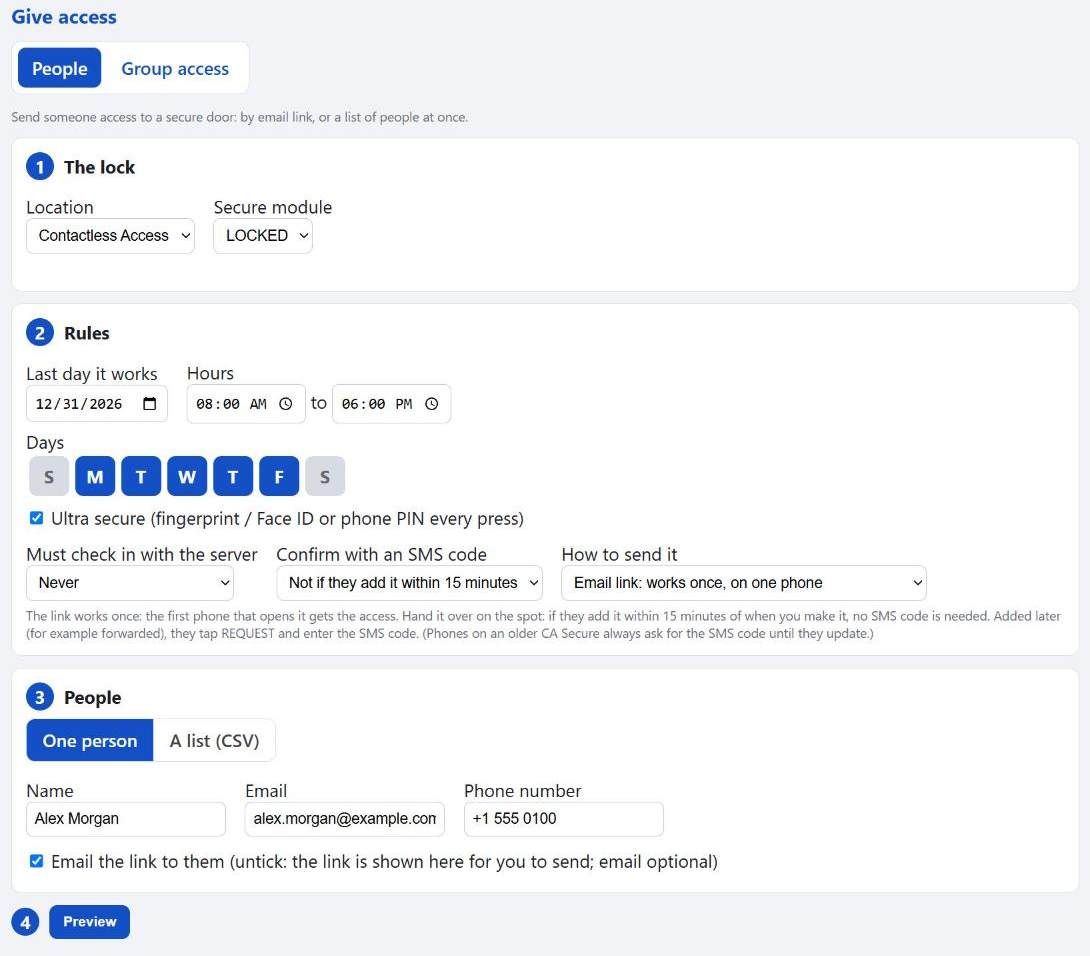
- Email link or QR code: send a personal link, or show a QR code to scan.
- One phone per link: a one-time link works on the first phone that opens it. A QR code can be added by several phones, each with its own text-message code.
- Groups: give a group of people several doors at once.
- Last day: access ends on the date you choose.
- Days of the week: choose which days the door opens for that person.
- Opening hours: choose the hours it opens, even a window that runs past midnight.
- Text-message confirm: the person confirms with a one-time code sent to the phone number you entered.
- Hand-over: optionally skip the text code when you hand the access over in person.
- Fingerprint, Face ID or passcode: extra-secure doors ask for the person’s fingerprint, Face ID or phone passcode before every press.
Changing your mind
- Withdraw: withdraw someone’s access at any time, and the door’s PIN is deleted from their phone. Choose a check-in rule to decide how quickly a phone must confirm its access is still valid.
- Check-in rule: require the phone to check in every time the app opens, daily or weekly. If a check-in is overdue, the door pauses until the phone checks in.
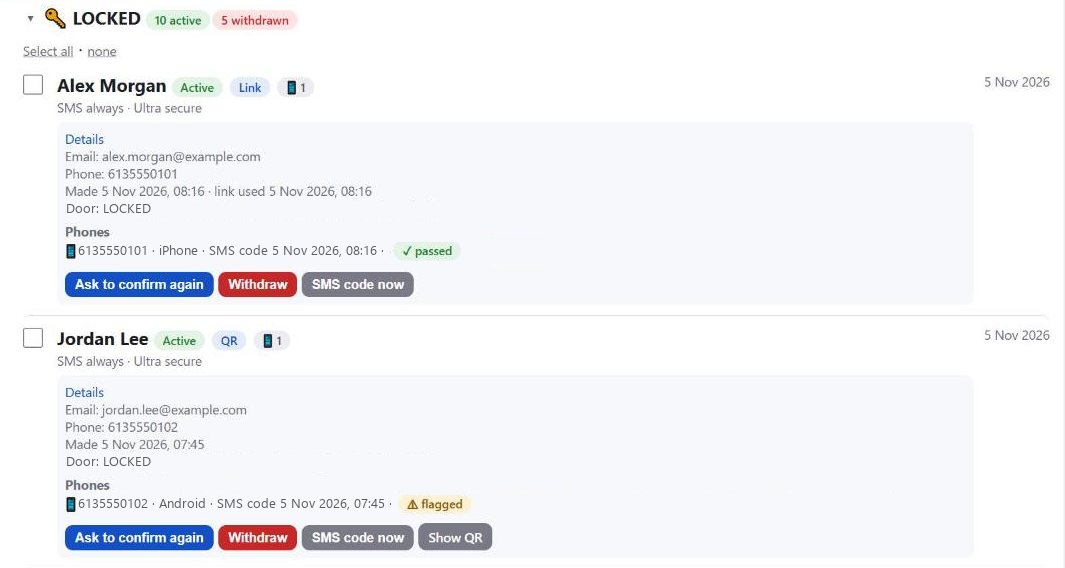
- Confirm again: make a phone confirm again with a new text-message code.
- Groups: taking a person or a door out of a group withdraws that access.
Seeing what happens
- Who has access: a list of everyone who can open each door.
- Activity log: every press with its result and time, and whether fingerprint or Face ID was used.
- Flagged presses: a press from a phone that wasn’t given that access is flagged in the log.
- Wrong-attempt emails: choose when you’re emailed about wrong attempts.
At the door
- Works offline: once access is added, the door opens even with no internet.
- Paths: a path can open a secure door along the way, in order with the other doors and elevators.
In the web admin
On the phone
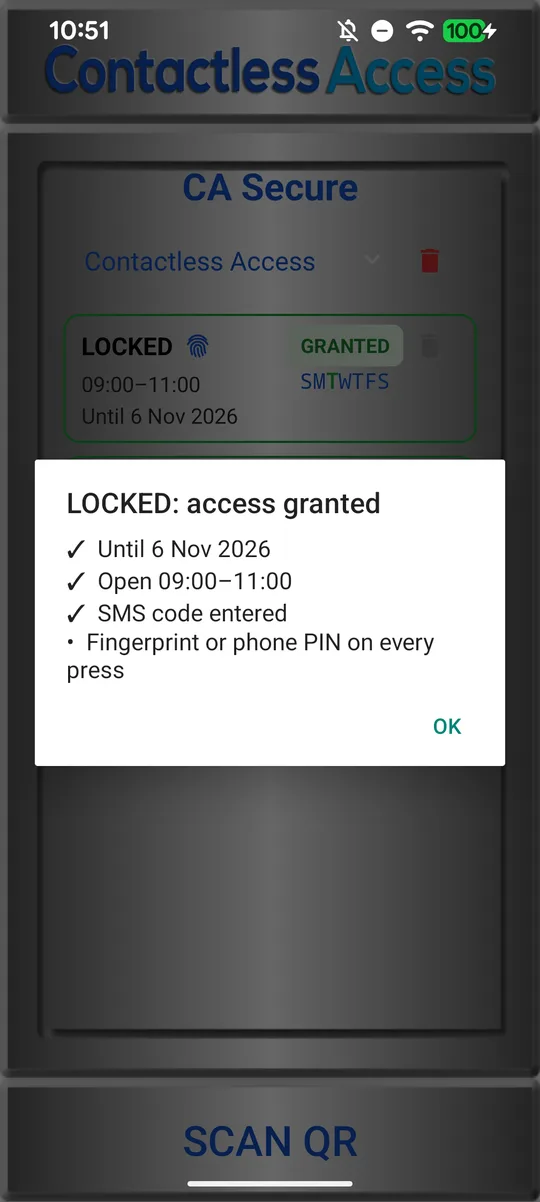
What the access allows.
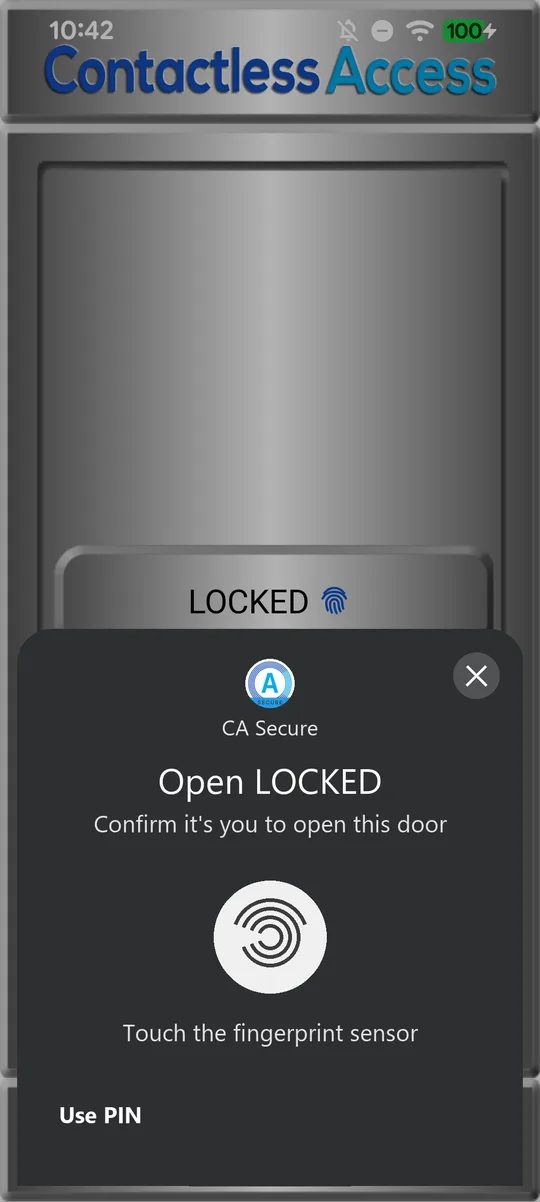
Fingerprint on Android.
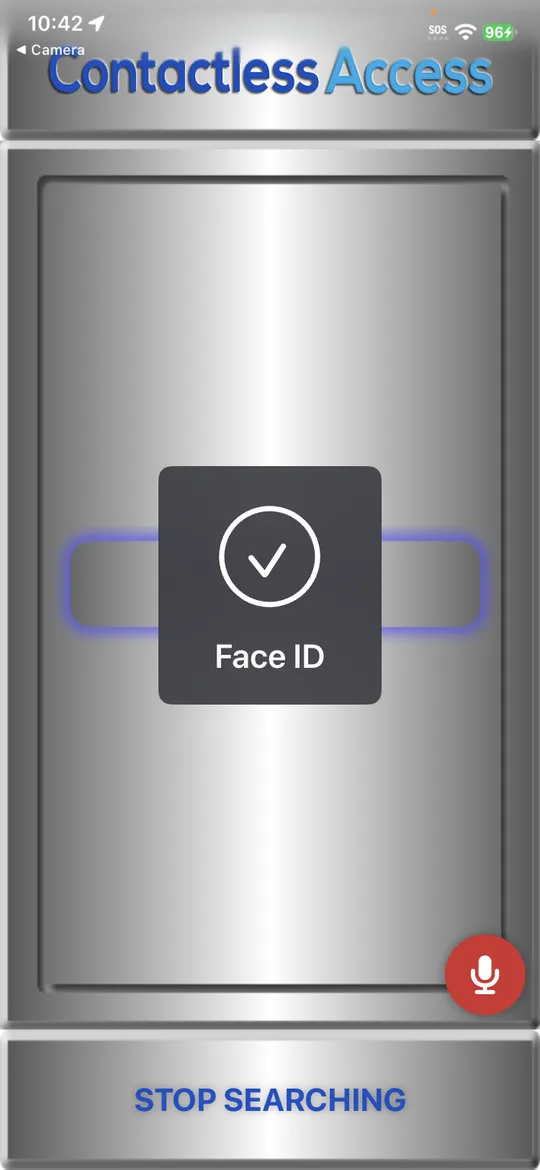
Face ID on iPhone.
How the locks are protected
- Signed access: every access code is digitally signed, so it can’t be copied or altered.
- The PIN stays hidden: a door’s PIN is never shown to anyone, in the app or in the web admin. It’s sent sealed to the one phone that was given access, and stored encrypted on our server.
- No replays: every door challenges each open, so a recording of an earlier opening can’t be used to open it.
- Private places: a building’s private places are sent encrypted to each phone.
- Wrong codes are limited: repeated wrong text-message codes lock that access.
Privacy for the people using it
Using CA Secure is voluntary and needs no account. Many doors need only a QR code and no personal information at all. Where a door asks for a phone number, CA Secure checks it against the number your security team entered; it doesn’t collect it. CA Secure privacy
Talk to us about secure doors
Tell us about the doors you want to secure, and who needs access.